Google Earth:
The user has the captility to create customized maps or data sets for further analyses or manipulation
in Google Earth software - Note that the Google Earth software must be installed on the user's pc in order to
view these files (available at Google.com for download). There are two Data Export functions, accessed as
shown in the following view at the places marked 1 and 2 - select the "KML" format for export to Google Earth.

- Save Results As: Check the "Save Results As" box and select the file format for export, then finish the
Query details, and Make Map.
- Navigation Bar Icon: Select this icon to export available basemap features - these will vary depending
on which Island is in the map view; the available features for the Island of Oahu are shown below: check the
boxes for desired features to export, and check the "KML" format to export to Google Earth.

The "KML" files can be opened and viewed in Google Earth or you can Save it to a file and provide it to
others for viewing with the Google Earth software. For example if a map of Traffic Stations on route 7012 is
created and saved as KML the website map would appear as shown below left (with the tooltip for one station
showing) and a dialog box pops up as shown on the right for viewing or saving in Google Earth.
If "Open" is selected on the dialog box, Google Earth will open dynamically with a view of the Earth turning
to show an aerial view of the Islands, then zooming in to Route 7012 - clicking the same traffic station
results in a box showing similar data as the tool tip in the website map above:
Google Maps:
Use the "Get Latitude/Longitude Coordinates" Navigation Bar button - shown circled in red in the column
of icons, below right - to access a Google Map of an area.
To access a Google Map for an area, click the "Get Latitude/Longitude Coordinates" icon in the toolbar,
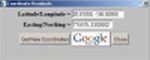
click a point on a map, and then click the Google Icon in the dialog box that appears.
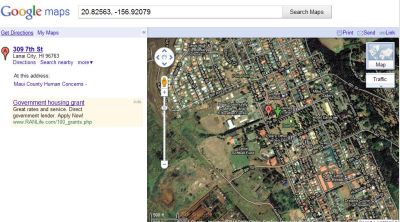
For example, clicking a point in Lanai city produces the following Google Map: