The Menu is located in the blue banner at the top of the Maps page. The "Overview" map is on the left
side, with the vertical Navigation Bar to the right of it. The large area to the right is the interactive Map
Detail section.
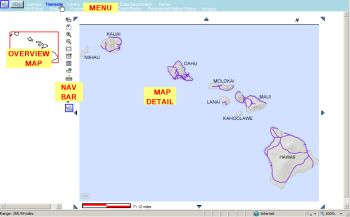

Menu Details: following is a description of the items shown in the menu bar above, from left
to right.
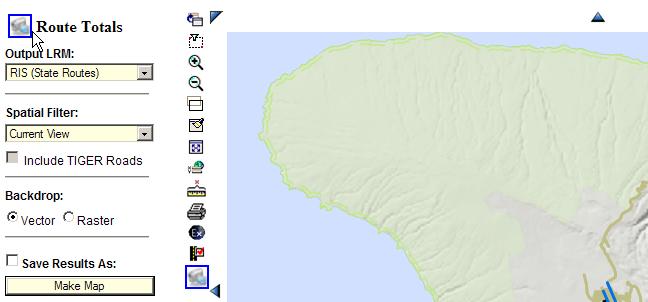
1. Video Camera Icon:
Enables the viewing of a short video describing the features shown on the
current page; this icon also appears at the top of each of the Query control panels for viewing the features
of that Query, as shown in the "Route Totals" query control panel below.
2. Help link:
Use the link to access this Quick Start guide at any time.
3. Queries:
Use the mouse to highlight "Queries" in the upper part of the menu to access clickable sub-menus beneath it.
A brief description of the sub-menu query is provided below (more detailed information on performing Queries
appears under this Quick Start Guide's menu shown at the left of this page, "Perform Searches").
Queries Submenus:
- HPMS – Federal-Aid network level information; some information appears only on sample sections
- Lighting - Information on roadway lighting is available, to include Arm Type, Bulb Type, Bulb Watt and Pole Type.
- Mileage – Calculates combined lengths of state and/or county routes in an area chosen
- Milepoint – Locate a point or segment of a state route by milepoint(s)
- Parcels – Obtain parcel (TMK) information
- Project – RunDBA project information
- Road Inventory – Access data items gathered from the Straight Line Diagrams and photologs
- Traffic – Traffic Station & annual traffic survey data documents
- Photolog – View digital images collected every 100 ft for state highways and major county highways.
4. Thematic:
Use the mouse to highlight "Thematic" in the upper part of the menu to access clickable sub-menus beneath
it as listed below. A brief description of the sub-menu query is provided below.
Thematic Submenus:
- NHS Map – Shows NHS and STRAHNET routes
- Bridges – Shows Map of bridges, with tooltip data
- Pavement Rank – Ranking of combined pavement distress information is shown on the map.
- Traffic Count Status – A coming feature: currently in the programming and testing process
- Permanent Station Status – A coming feature: currently in testing on the test website
- Imagery – Select from three types of imagery (low and high resolution satellite, digital USGS maps).
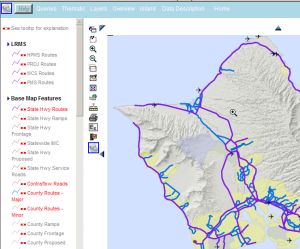
5. Map Features:
Click this to display in the left panel of the page an interactive legend of map data Map Features and
features being displayed. These are organized into categories of LRMS, BaseMap features, Land Boundaries,
Environmental and Infrastructure. You can turn selected data features (highlighted in red on the legend)
on/off (for example, click to turn off County Routes, and they will disappear from the map). Also, many
features are programmed to turn off or on at certain map scales to optimize the readability of the map; a
feature can be set to be visible at all ranges by clicking the small red and white ‘scale bar’ icon next to
the feature. The “Map Features” legend is shown below.
5. Overview:
Click this item to see a Red box within the Island chain that shows where the detailed map area is located.
For example, when the detail area of the Map shows a zoomed-in area, it may not be evident where that location
is on an Island, or even which Island it is on (as shown in the view below at the left); click "Overview" to
see where it is (the view below, right, shows a red dot in the NW side of Hawaii). You can also click on an
island in the Overview map to create a map of that Island.
6. Island:
The "Island" submenu is a list of the Hawaiian Islands. Select an Island from the list to create a map of it.
7. Data Description:
This Provides user access to the metadata for each data item. Users often need to know the origin,
history, and quality of the data that they are viewing.
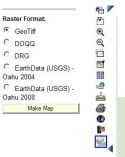
8. Imagery:
Click "Imagery" to obtain a selection of background imagery that can be overlain on the map to be created.
9. Home:
Click here to return to the Website Home Page