Information on Permanent Traffic Station Status is available when selecting "Permanent Station Status" under the "Thematic"
heading in the top Menu bar.
Permanent Station Status: An explanation of the Control Panel terminology and an example search is shown below the
following images:
 |
- Video Cam Icon: Click this Icon next to the Permanent Station Status heading to view a short video describing
available features in the Permanent Station Status queries.
- Output LRM: Select the desired LRM to display from the picklist:
- Selected Route: All state routes and major county routes (functionally classed minor collector and above) are listed in the drop down box, and any single route may be selected for the map/report. If a particular route is selected, a box will appear for the input of the beginning (BMP) and ending milepoints (EMP) for the map/report.
- Spatial Filter: This filter defines a particular area for building the map/report. Current
View will make the map/report using whichever map may be currently visible at the right of the Control Panel;
additional filters include maps of Island, Census Tracts, political House & Senate districts (state),
and a Custom filter, enabling the drawing of a circle or polygon around a desired area for the map/report.
Selection of the Spatial Filter option will produce an Area drop-down box which contains available Island
names, district numbers, etc. depending upon the filter that was selected.
Using the Custom Filter: to map features within a selected circular or polygon area in the map, select
"Custom Filter", click the radio button for Circle or Polygon, and then click the "Draw Filter" button.
A dialog box instructs to draw a circle\polygon and then make a map. Click "ok" and the cursor will appear
as a "+".
-To draw a circle, click once on the map where the center of the circle will be and release the mouse
button; then move the mouse to move the cursor away from that point to the desired radius of the circle
and click again; the cursor will then be free to select Make Map, etc.
-To draw a polygon, click once on the map, release the mouse button, and move the mouse to draw the
first leg of the polygon; click once, then draw the next leg; repeat drawing as many legs as desired, then
double click to finish the polygon and free the cursor to select Make Map, etc.
- Make Map:
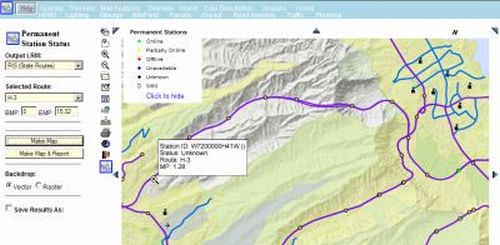
To make a map of the Permanent Station Status on a selected route, select a route
from the "Selected Route" drop down and then enter the BMP and EMP of interest; Click Make Map and the
resulting map is shown on the right - in this example Route H-3 was selected with default BMP and EMP. Moving
the cursor over the map features provides a tool tip with information on the Permanent Station. The Legend
can be minimized by clicking the "Click to Hide" line at the bottom of the Legend.
Note that if the results are to be saved as a DGN,Shape or KML file, the check box
at the bottom of the Control Panel labeled "Save Results As" must be checked before making a map.
- Make Map & Report:
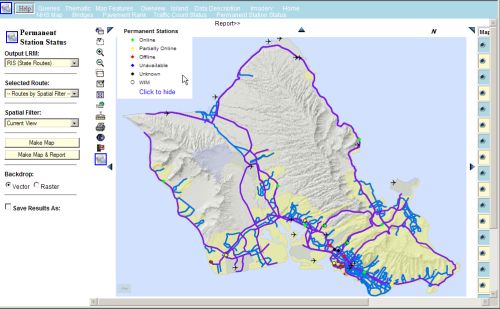
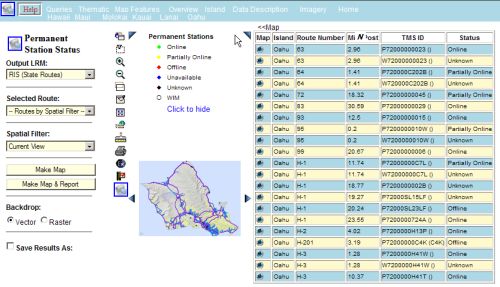
Clicking this button provides a map and a report of the Status of the
Permanent stations. The example below was created using the Spatial Filter of the current view of Oahu:
The report is shown below:
- Backdrop: Before making a map, selecting Raster will display a low-resolution satellite image
under the resulting map. Selecting Vector returns the map to the normal view.
- Save Results As: Before making a map, checking this box will provide a zipped file for download
that contains Shape (shp) files, Design (DGN) files or Google Earth (KML) files.