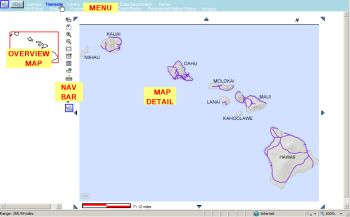
Use the vertical column of navigation Icons to perform the described actions on the map window.
(*) To use the items below that are followed by an (*) click the Icon and then click on the Map to perform
the function.
|
|
| Display Last View - returns the previous browser page |
| Zoom By Area - draw a rectangle on the map to Zoom in to (*) |
| Zoom In - click a point to zoom in to (*) |
| Zoom Out - click a point to zoom out from (*) |
| Center Map to Point - puts the selected point at the center of the map area(*) |
| Refresh from Server - refresh the page |
| Fit Map - shows All Islands in the Map Area |
| Get Latitude/Longitude Coordinates - also, use this to make a "Google" Map (*) |
| Measure Distance in Feet and Miles - select a line to measure; click 1st point, double click last (*) |
| Print Preview - shows what will print |
| Export Features - export data to a Shape (Shp),Design (DGN) or Google Earth (KML) file |
| Photolog - start photolog at designated point (*) |
| Video Tour of Navigation Tools - video of how to use the tools in this navigation bar |
|
For instance, click the Zoom By Area button and draw a rectangle on the map for a zoom-in view by
left clicking and holding that mouse button until the entire extent of interest is captured, as shown by
the green box in the view below on the left - note that the red box in the Overview map shows the initial
view to be the entire island of Hawaii, while the box in the second view shows what area of the island
is being shown after the zoom action.
North Arrow:
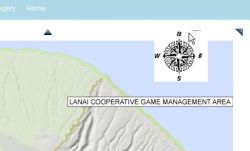
At the top right side of the Map window is a small "N"; click this "N" to see the North Arrow, and
click on the compass when you want to hide it again.
Some screens may require using the scroll bar on the right side of the page for scrolling down the
page to see the map scale bar (in miles) as shown on the right below; also the scroll bar at the bottom may
be required to move across the screen to see reports etc.