- Video Cam Icon: Click this Icon next to the Route Totals heading to view a short video describing
available features in this Query.
- Output LRM: Select the desired LRM to display from the picklist:
- Spatial Filter: This filter defines a particular area for building the map/report. Current
View will make the map/report using whichever map may be currently visible at the right of the Control Panel;
additional filters include maps of Island, Census Tracts, political House & Senate districts (state),
and a Custom filter, enabling the drawing of a circle or polygon around a desired area for the map/report.
Selection of the Spatial Filter option will produce an Area drop-down box which contains available Island
names, district numbers, etc. depending upon the filter that was selected.
Using the Custom Filter: to map features within a selected circular or polygon area in the map, select
"Custom Filter", click the radio button for Circle or Polygon, and then click the "Draw Filter" button.
A dialog box instructs to draw a circle\polygon and then make a map. Click "ok" and the cursor will appear
as a "+".
-To draw a circle, click once on the map where the center of the circle will be and release the mouse
button; then move the mouse to move the cursor away from that point to the desired radius of the circle
and click again; the cursor will then be free to select Make Map, etc.
-To draw a polygon, click once on the map, release the mouse button, and move the mouse to draw the
first leg of the polygon; click once, then draw the next leg; repeat drawing as many legs as desired, then
double click to finish the polygon and free the cursor to select Make Map, etc.
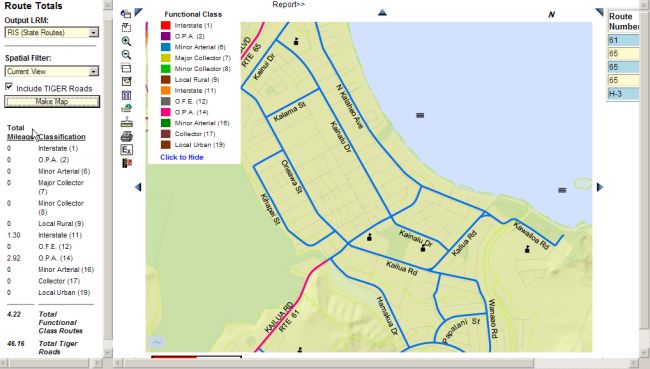
Mileage Example:
The Query\Mileage Control Panel provides the capability to calculate the total miles of all roads in a selected
region; TIGER roads (minor county roads) may be included or excluded. In this example, a region in the Kailua
area of Oahu was selected with the Zoom by Rectangle navigation feature; TIGER Roads were also selected on
the Control Panel; selecting Make Map produced the following map and information. The resulting map is color coded
with the functional classes as shown in the legend, and a summary of road mileage is shown on the left below
the Control Panel.